> ## Documentation Index
> Fetch the complete documentation index at: https://cloud-docs.orbi.build/llms.txt
> Use this file to discover all available pages before exploring further.
# Connect a repository
> How do I connect a repository to Orbi Cloud and how do I change it later?
Connecting a repository tells Orbi which repository's Issues it may work on, and which branch to open pull requests against.
Orbi Cloud works in **one active repository at a time**. Connecting is self-service: you pick the repository and the base branch on the connect page, and provisioning starts immediately.
## Connect
From the status page, click **Connect repository** (or **Connect / change repository** in the **Connected repository** card).
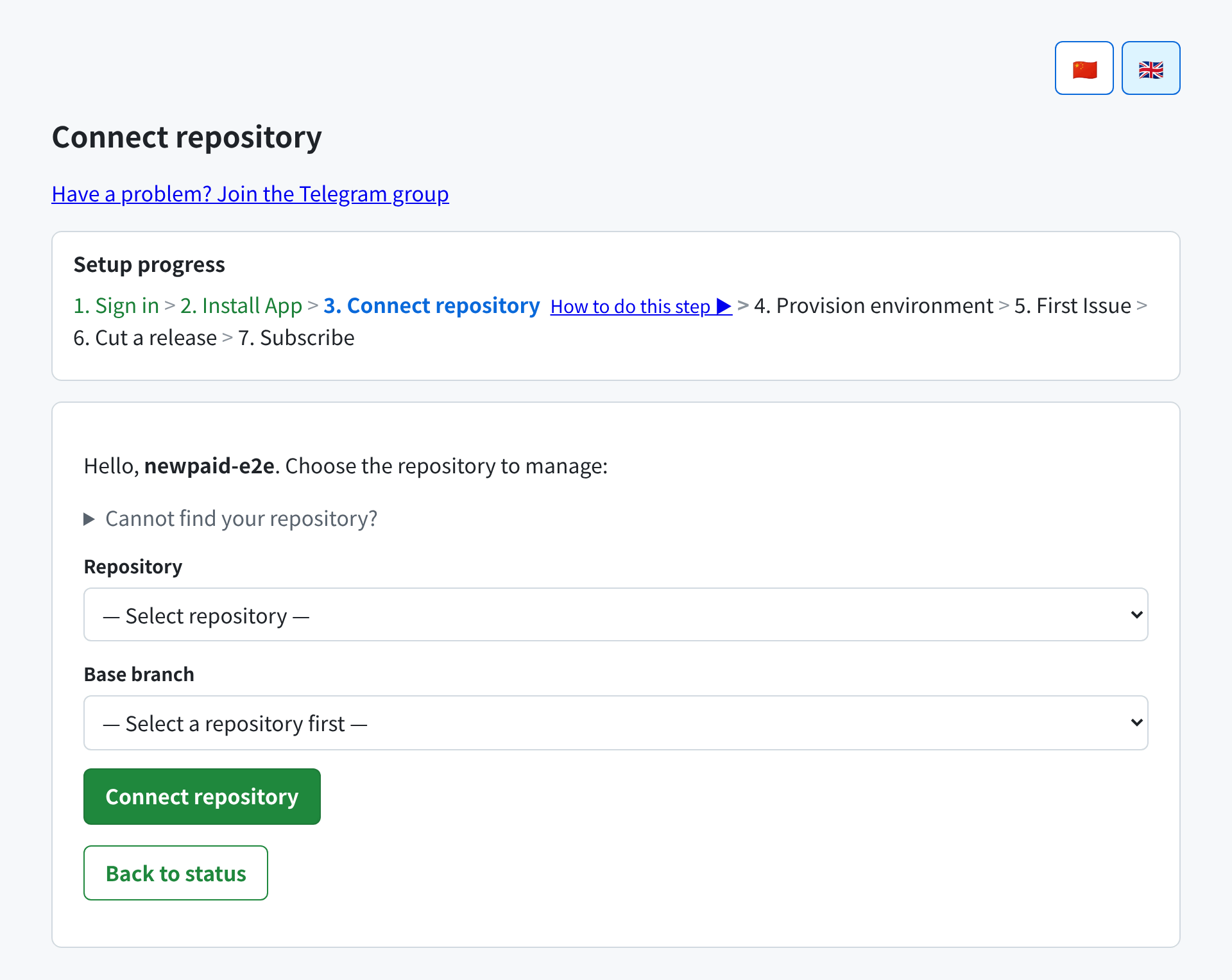 1. **Repository** — pick from the repositories your GitHub App installation covers.
2. **Base branch** — the branch Orbi opens pull requests against. Selecting a repository loads its real branches and preselects its default branch, so usually you just confirm.
3. Click **Connect repository**.
You return to the status page, where the **Connected repository** card now lists the repository with an **Active** chip, and provisioning begins.
## Requirements a repository has to meet
A repository can only be connected if:
* It is **covered by your GitHub App installation**. Orbi only sees repositories you authorized.
* It has **Issues enabled**. Orbi's entire input channel is Issues, so a repository with Issues turned off is rejected.
Both are checked when you submit, not just when the page renders — so a repository that was de-authorized in between is caught.
## When your repository is not listed
The dropdown only contains repositories your App installation covers. If yours is missing, open **Cannot find your repository?** on the connect page: it explains the cause and links to GitHub's App settings, where you can add the repository to the installation.
You can also use **Enter manually** in either dropdown to type an `OWNER/REPO` value directly. That is useful when the listing is temporarily unavailable, but it does not bypass the authorization check — a repository the App cannot access is still rejected on submit.
1. **Repository** — pick from the repositories your GitHub App installation covers.
2. **Base branch** — the branch Orbi opens pull requests against. Selecting a repository loads its real branches and preselects its default branch, so usually you just confirm.
3. Click **Connect repository**.
You return to the status page, where the **Connected repository** card now lists the repository with an **Active** chip, and provisioning begins.
## Requirements a repository has to meet
A repository can only be connected if:
* It is **covered by your GitHub App installation**. Orbi only sees repositories you authorized.
* It has **Issues enabled**. Orbi's entire input channel is Issues, so a repository with Issues turned off is rejected.
Both are checked when you submit, not just when the page renders — so a repository that was de-authorized in between is caught.
## When your repository is not listed
The dropdown only contains repositories your App installation covers. If yours is missing, open **Cannot find your repository?** on the connect page: it explains the cause and links to GitHub's App settings, where you can add the repository to the installation.
You can also use **Enter manually** in either dropdown to type an `OWNER/REPO` value directly. That is useful when the listing is temporarily unavailable, but it does not bypass the authorization check — a repository the App cannot access is still rejected on submit.
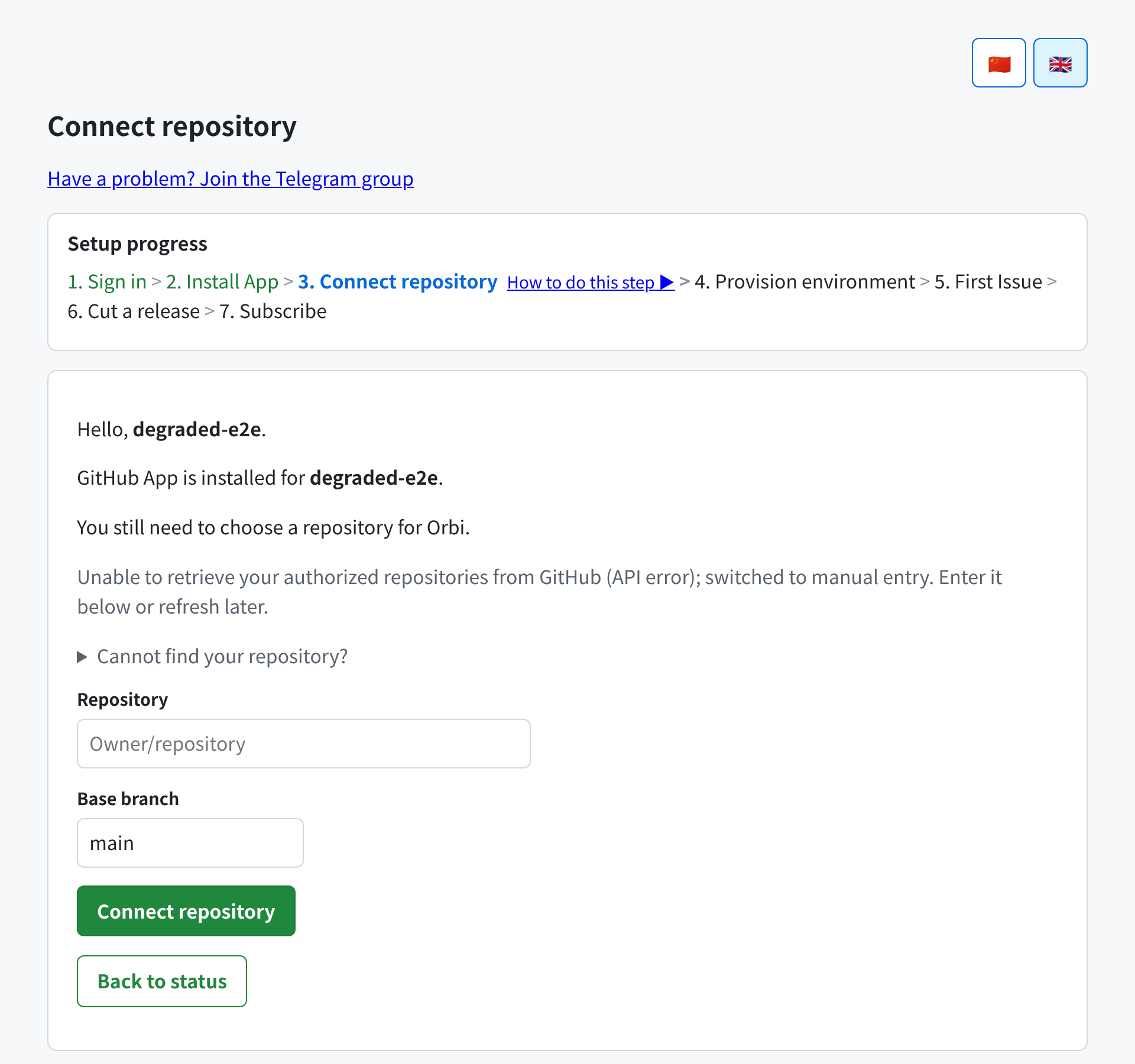 If GitHub's repository listing cannot be read at all, the page degrades to manual entry and tells you why, rather than blocking you.
## Branch protection that blocks every merge
If your base branch requires approving reviews before merge, the connect page warns you in red immediately, because this setting stops **every** delivery at the merge step.
The reason is identity: Orbi opens the pull request and merges it as the same GitHub App, and GitHub does not let a pull request's author approve their own pull request. With required approvals in force, each delivery gets as far as a reviewed, ready pull request and then cannot merge it.
Three ways to resolve it — pick whichever suits your policy:
1. **Approve each delivery yourself.** You or a colleague clicks **Approve** on the pull request, and the merge proceeds. Keeps a human in the loop on every change.
2. **Let admins bypass.** Under **Settings → Branches → Branch protection rules** (or **Settings → Rules → Rulesets**), enable **Allow admins to bypass**, or add the account to the ruleset's bypass list.
3. **Set required approvals to 0** in the same setting.
Changing it does not require reconnecting — the next delivery's pull request merges normally.
## Changing the connected repository
Use **Connect / change repository** and connect a different one. The new repository becomes active and the previous one moves to history — it is not deleted, and it still appears under **Historical repositories** on the status page.
Changing repositories provisions a fresh environment for the new one, which again takes a minute or two.
You cannot change repositories while a delivery is in flight. The page tells you **a delivery is still in progress** and asks you to try again later. This protects the running delivery — wait for it to reach `ai-merged` or `ai-blocked`, then rebind.
## What the errors mean
| What the page says | What happened | What to do |
| -------------------------------------------------------- | ----------------------------------------------------------- | ----------------------------------------------------------------------------- |
| The repository is not authorized for the Orbi GitHub App | The repository is outside your installation's scope | Open installation settings, add the repository, reload the connect page |
| Issues are disabled | The repository has the Issues feature turned off | Enable it under the repository's **Settings → Features → Issues**, then retry |
| A delivery is still in progress | A delivery is running in the currently connected repository | Wait for it to finish, then rebind |
| The repository list was temporarily unavailable | GitHub's API could not be reached | Retry; use manual entry if it persists |
| Repository format is invalid | The manually entered value is not `OWNER/REPO` | Re-enter as `owner/repository`, for example `orbi-build/orbi` |
## What happens next
Connecting starts [provisioning](/provisioning) — Orbi builds the isolated environment your deliveries run in and installs the `ai-*` labels into your repository. Watch the **Provisioning status** column until it shows **Provisioned**, then [file your first Issue](/first-issue).
If GitHub's repository listing cannot be read at all, the page degrades to manual entry and tells you why, rather than blocking you.
## Branch protection that blocks every merge
If your base branch requires approving reviews before merge, the connect page warns you in red immediately, because this setting stops **every** delivery at the merge step.
The reason is identity: Orbi opens the pull request and merges it as the same GitHub App, and GitHub does not let a pull request's author approve their own pull request. With required approvals in force, each delivery gets as far as a reviewed, ready pull request and then cannot merge it.
Three ways to resolve it — pick whichever suits your policy:
1. **Approve each delivery yourself.** You or a colleague clicks **Approve** on the pull request, and the merge proceeds. Keeps a human in the loop on every change.
2. **Let admins bypass.** Under **Settings → Branches → Branch protection rules** (or **Settings → Rules → Rulesets**), enable **Allow admins to bypass**, or add the account to the ruleset's bypass list.
3. **Set required approvals to 0** in the same setting.
Changing it does not require reconnecting — the next delivery's pull request merges normally.
## Changing the connected repository
Use **Connect / change repository** and connect a different one. The new repository becomes active and the previous one moves to history — it is not deleted, and it still appears under **Historical repositories** on the status page.
Changing repositories provisions a fresh environment for the new one, which again takes a minute or two.
You cannot change repositories while a delivery is in flight. The page tells you **a delivery is still in progress** and asks you to try again later. This protects the running delivery — wait for it to reach `ai-merged` or `ai-blocked`, then rebind.
## What the errors mean
| What the page says | What happened | What to do |
| -------------------------------------------------------- | ----------------------------------------------------------- | ----------------------------------------------------------------------------- |
| The repository is not authorized for the Orbi GitHub App | The repository is outside your installation's scope | Open installation settings, add the repository, reload the connect page |
| Issues are disabled | The repository has the Issues feature turned off | Enable it under the repository's **Settings → Features → Issues**, then retry |
| A delivery is still in progress | A delivery is running in the currently connected repository | Wait for it to finish, then rebind |
| The repository list was temporarily unavailable | GitHub's API could not be reached | Retry; use manual entry if it persists |
| Repository format is invalid | The manually entered value is not `OWNER/REPO` | Re-enter as `owner/repository`, for example `orbi-build/orbi` |
## What happens next
Connecting starts [provisioning](/provisioning) — Orbi builds the isolated environment your deliveries run in and installs the `ai-*` labels into your repository. Watch the **Provisioning status** column until it shows **Provisioned**, then [file your first Issue](/first-issue).