> ## Documentation Index
> Fetch the complete documentation index at: https://cloud-docs.orbi.build/llms.txt
> Use this file to discover all available pages before exploring further.
# Sign in
> How do I sign in to Orbi Cloud and what does signing in give it access to?
Signing in is a single GitHub OAuth click that establishes who you are, and it grants Orbi no repository access by itself.
Orbi Cloud has no password of its own. Your GitHub account is your identity, and the repository access is a separate, explicit step — [installing the GitHub App](/install-app) — that you control from GitHub.
## Sign in
Open **[orbi.build/api/](https://orbi.build/api/)** and click **Sign in with GitHub**.
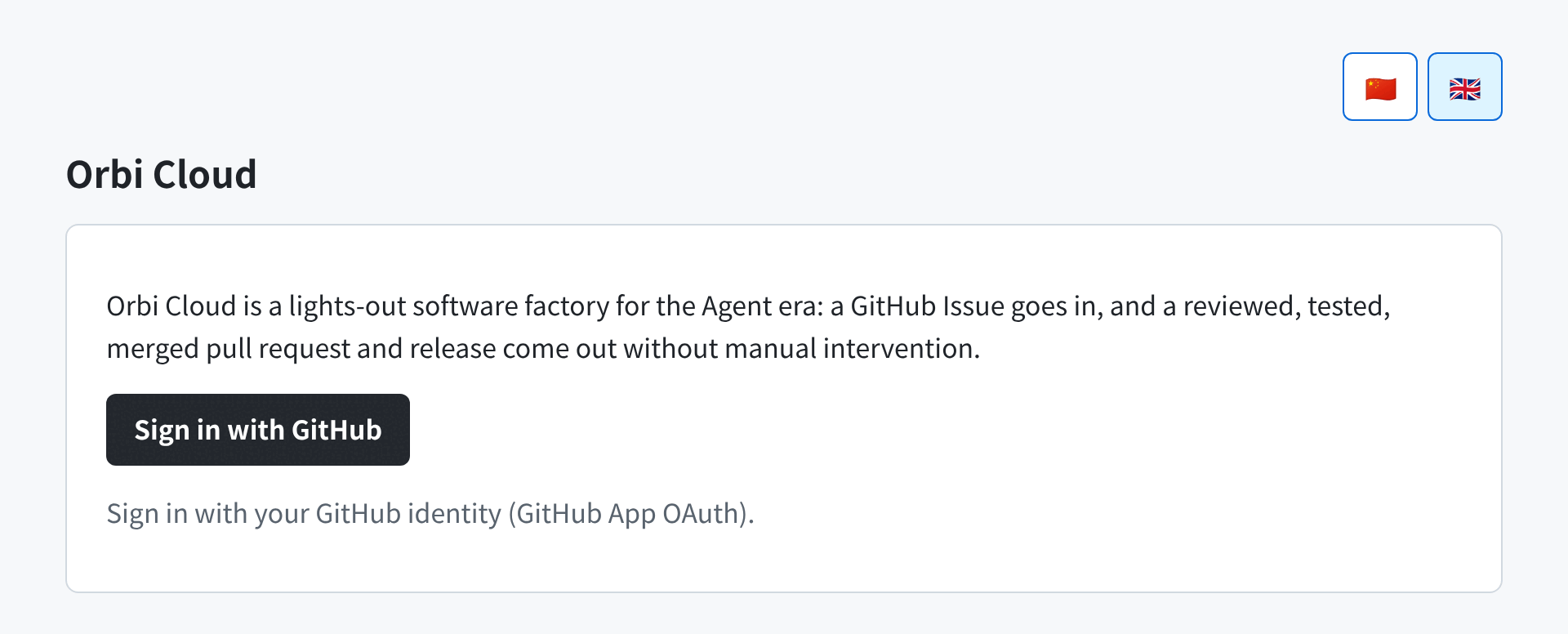 GitHub shows you its standard authorization screen. Approving it returns you to the Orbi Cloud status page.
The sign-in requests one OAuth scope, `user:email` — your identity and your email address, nothing more. It does not grant access to any repository's code or Issues. That comes from the GitHub App installation, which is authorized separately and lists its own permissions.
## Choosing your language
Orbi Cloud is available in English and Chinese. The page follows your browser's preferred language on first visit, so it may open in Chinese.
Use the flags in the top right to switch: 🇬🇧 for English, 🇨🇳 for Chinese. Your choice is stored in a cookie and remembered for a year, on that browser.
## Personal and organization accounts
If you install the Orbi GitHub App on an **organization** rather than on your personal account, the organization gets its own Orbi tenant — its repository, its subscription and its usage are tracked separately from your personal one.
You sign in the same way either way. Which tenant you are operating on is decided by the installation you came through, so when you own both a personal and an organization installation, return through the installation whose tenant you want to work on.
## Signing out
The **Sign out** button is in the **Account** card at the bottom of the status page.
GitHub shows you its standard authorization screen. Approving it returns you to the Orbi Cloud status page.
The sign-in requests one OAuth scope, `user:email` — your identity and your email address, nothing more. It does not grant access to any repository's code or Issues. That comes from the GitHub App installation, which is authorized separately and lists its own permissions.
## Choosing your language
Orbi Cloud is available in English and Chinese. The page follows your browser's preferred language on first visit, so it may open in Chinese.
Use the flags in the top right to switch: 🇬🇧 for English, 🇨🇳 for Chinese. Your choice is stored in a cookie and remembered for a year, on that browser.
## Personal and organization accounts
If you install the Orbi GitHub App on an **organization** rather than on your personal account, the organization gets its own Orbi tenant — its repository, its subscription and its usage are tracked separately from your personal one.
You sign in the same way either way. Which tenant you are operating on is decided by the installation you came through, so when you own both a personal and an organization installation, return through the installation whose tenant you want to work on.
## Signing out
The **Sign out** button is in the **Account** card at the bottom of the status page.
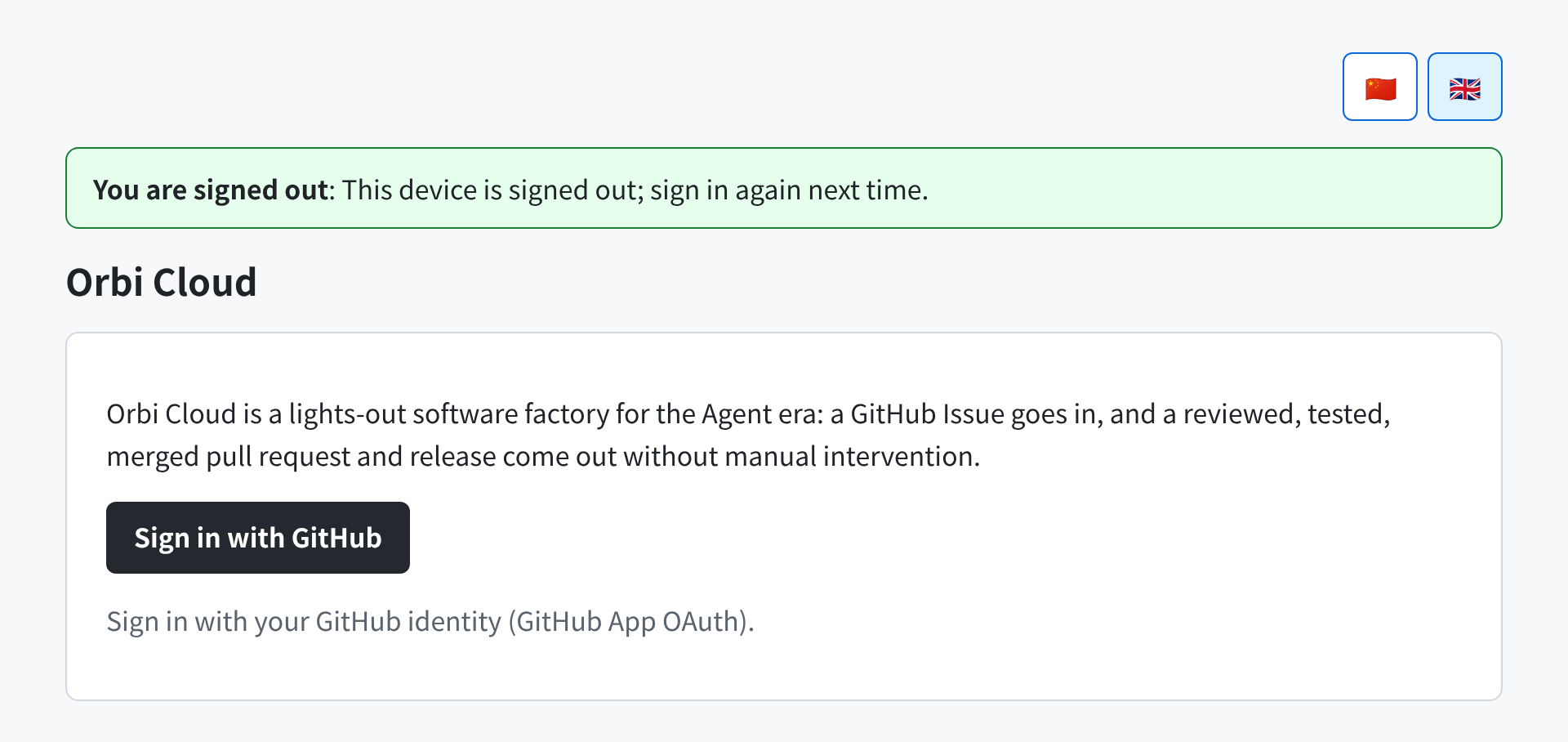 Signing out clears the session on that device only. It does not uninstall the GitHub App, cancel a subscription, or stop a delivery that is already running.
## When your session expires
A session lasts **7 days** and is not extended by activity, so you sign in again about once a week. If yours has expired, the page says **GitHub sign-in has expired** and offers **Sign in again**; pages that need an identity say so rather than failing silently.
Signing in again restores everything — your repository connection, your model configuration and your delivery history are stored against your tenant, not against the browser session.
Signing out clears the session on that device only. It does not uninstall the GitHub App, cancel a subscription, or stop a delivery that is already running.
## When your session expires
A session lasts **7 days** and is not extended by activity, so you sign in again about once a week. If yours has expired, the page says **GitHub sign-in has expired** and offers **Sign in again**; pages that need an identity say so rather than failing silently.
Signing in again restores everything — your repository connection, your model configuration and your delivery history are stored against your tenant, not against the browser session.