> ## Documentation Index
> Fetch the complete documentation index at: https://cloud-docs.orbi.build/llms.txt
> Use this file to discover all available pages before exploring further.
# The status page
> How do I read the Orbi Cloud status page?
The status page at **[orbi.build/api/](https://orbi.build/api/)** is where you see what Orbi is doing, what needs you, and what you have used.
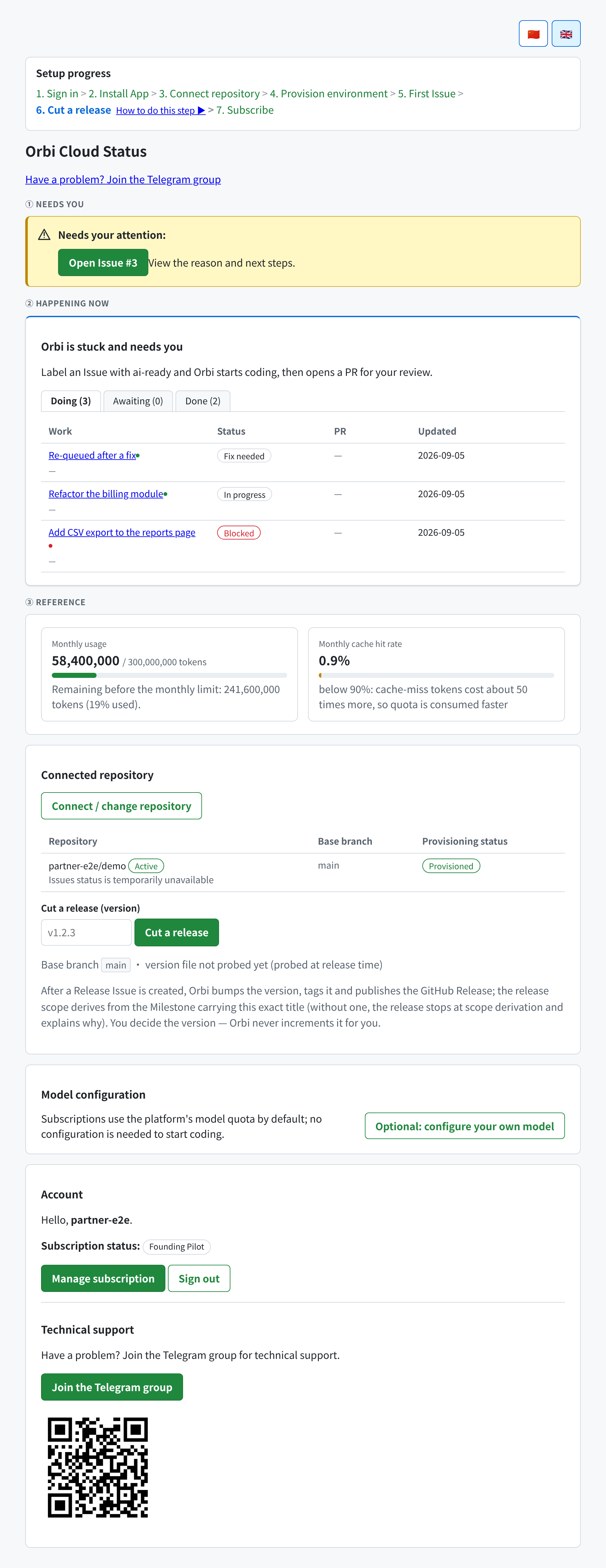
It is organised by urgency rather than by feature. The three numbered sections — **① Needs you**, **② Happening now**, **③ Reference** — are in that order on purpose: anything requiring your attention is at the top.
 ## ① Needs you
The yellow banner appears only when something is actually waiting on you: a blocked Issue, a failed provisioning, a repository that needs reconnecting, or a disabled Issues setting. It names the problem and gives you the button that fixes it.
When nothing needs you, this section is absent. An empty page here is good news.
## ② Happening now
The headline sentence is a plain-language summary of your tenant's state — for example **Orbi is coding**, **Orbi opened a PR for you**, **Orbi is stuck and needs you**, **Orbi is idle**, or **Orbi is waiting for your first Issue**.
Below it, your work is split across three tabs. Each work item appears in exactly one of them:
| Tab | What is in it |
| ------------ | ---------------------------------------------------------------------------------------- |
| **Doing** | Work Orbi is currently handling — anything carrying an `ai-*` label that is not finished |
| **Awaiting** | Pull requests waiting for your review |
| **Done** | Finished work: merged, or closed |
Each row shows the work item (linking to the GitHub Issue), its status, its pull request, when it was last updated, and its usage. Work that has not reported usage shows `—`.
The status chips map to the labels described in [the delivery lifecycle](/delivery-lifecycle): **In progress**, **Fix needed**, **Blocked**, and so on. Open the work item to see the reason and next steps on the Issue itself.
### Setup progress
Above everything, a seven-step breadcrumb tracks onboarding: **Sign in → Install App → Connect repository → Provision environment → First Issue → Cut a release → Subscribe**. Completed steps are green, the current one is blue, and a step that genuinely failed is red — a step that is merely waiting on you is not treated as a failure. The current step carries a **How to do this step** link.
It is the fastest way to see how far you got.
## ① Needs you
The yellow banner appears only when something is actually waiting on you: a blocked Issue, a failed provisioning, a repository that needs reconnecting, or a disabled Issues setting. It names the problem and gives you the button that fixes it.
When nothing needs you, this section is absent. An empty page here is good news.
## ② Happening now
The headline sentence is a plain-language summary of your tenant's state — for example **Orbi is coding**, **Orbi opened a PR for you**, **Orbi is stuck and needs you**, **Orbi is idle**, or **Orbi is waiting for your first Issue**.
Below it, your work is split across three tabs. Each work item appears in exactly one of them:
| Tab | What is in it |
| ------------ | ---------------------------------------------------------------------------------------- |
| **Doing** | Work Orbi is currently handling — anything carrying an `ai-*` label that is not finished |
| **Awaiting** | Pull requests waiting for your review |
| **Done** | Finished work: merged, or closed |
Each row shows the work item (linking to the GitHub Issue), its status, its pull request, when it was last updated, and its usage. Work that has not reported usage shows `—`.
The status chips map to the labels described in [the delivery lifecycle](/delivery-lifecycle): **In progress**, **Fix needed**, **Blocked**, and so on. Open the work item to see the reason and next steps on the Issue itself.
### Setup progress
Above everything, a seven-step breadcrumb tracks onboarding: **Sign in → Install App → Connect repository → Provision environment → First Issue → Cut a release → Subscribe**. Completed steps are green, the current one is blue, and a step that genuinely failed is red — a step that is merely waiting on you is not treated as a failure. The current step carries a **How to do this step** link.
It is the fastest way to see how far you got.
 ## ③ Reference
### Monthly usage
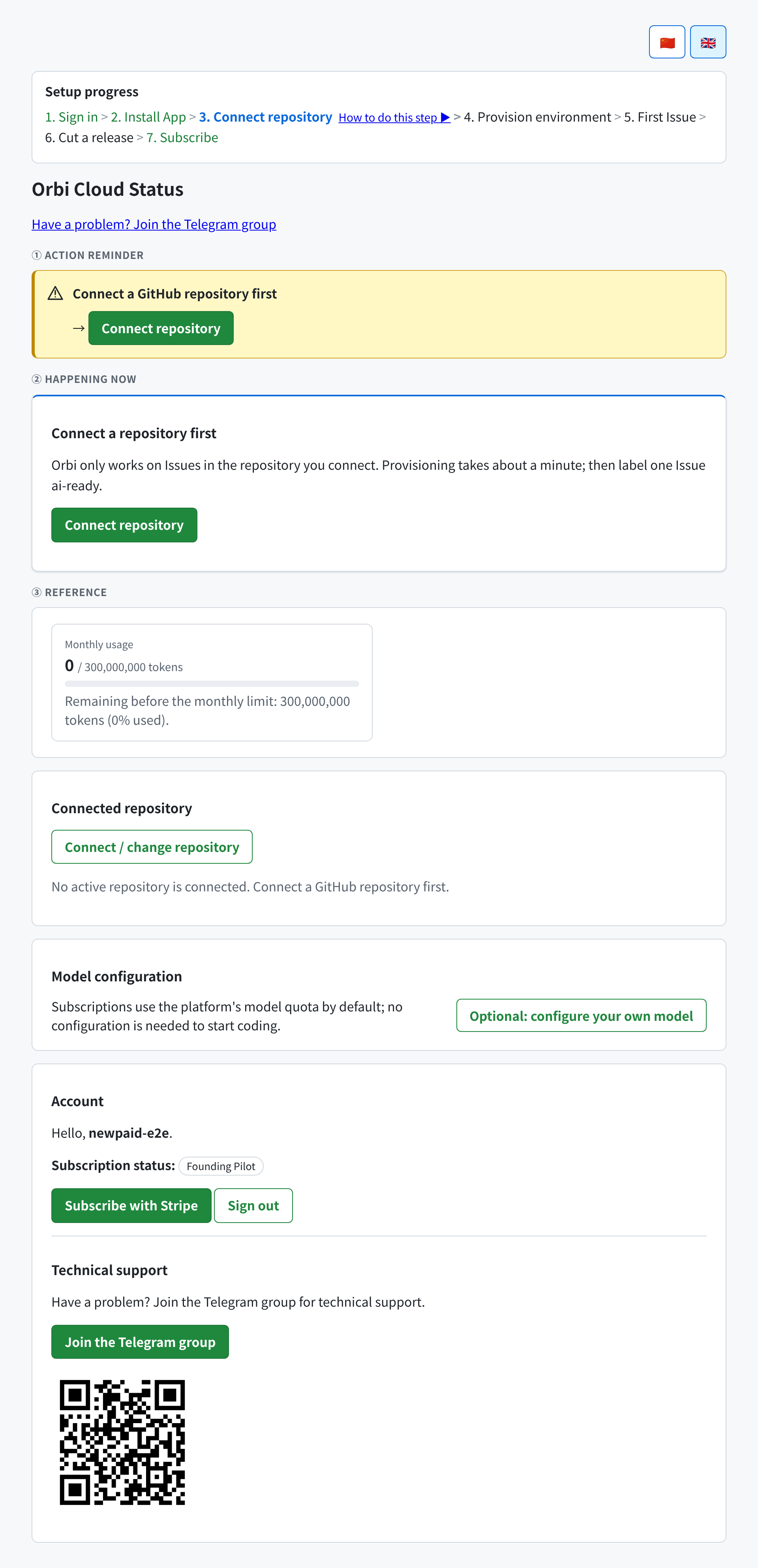
Tokens used this calendar month against your limit, with how many remain and the percentage used.
Beside it, **Monthly cache hit rate**. This one is worth reading: cache-miss tokens cost about 50 times more than cache hits, so a rate below 90% consumes your quota much faster. The page flags that explicitly when it applies.
See [limits and quotas](/limits-and-quotas).
### Connected repository
Your active repository, its base branch, and its **Provisioning status**. Repositories you previously connected appear under **Historical repositories** — they are kept, not deleted.
This card is also where **Connect / change repository** lives, and where provisioning failures explain themselves.
It holds the **Cut a release** form too — type a version, and Orbi creates the Release Issue for you. See [releases](/releases).
### Model configuration
Whether you are on the included platform quota or your own key. If you configured a key, it is shown masked. See [model configuration](/model-configuration).
### Account
Your GitHub login, your subscription status, and the buttons for **Manage subscription** (or **Subscribe with Stripe**) and **Sign out**.
### Technical support
A link and a QR code for the Telegram group. That is the support channel — see [troubleshooting](/troubleshooting#getting-help).
## On a phone
The page is designed to work at phone width; the tables reflow rather than scrolling sideways.
## ③ Reference
### Monthly usage
Tokens used this calendar month against your limit, with how many remain and the percentage used.
Beside it, **Monthly cache hit rate**. This one is worth reading: cache-miss tokens cost about 50 times more than cache hits, so a rate below 90% consumes your quota much faster. The page flags that explicitly when it applies.
See [limits and quotas](/limits-and-quotas).
### Connected repository
Your active repository, its base branch, and its **Provisioning status**. Repositories you previously connected appear under **Historical repositories** — they are kept, not deleted.
This card is also where **Connect / change repository** lives, and where provisioning failures explain themselves.
It holds the **Cut a release** form too — type a version, and Orbi creates the Release Issue for you. See [releases](/releases).
### Model configuration
Whether you are on the included platform quota or your own key. If you configured a key, it is shown masked. See [model configuration](/model-configuration).
### Account
Your GitHub login, your subscription status, and the buttons for **Manage subscription** (or **Subscribe with Stripe**) and **Sign out**.
### Technical support
A link and a QR code for the Telegram group. That is the support channel — see [troubleshooting](/troubleshooting#getting-help).
## On a phone
The page is designed to work at phone width; the tables reflow rather than scrolling sideways.
 ## Refreshing
The page refreshes itself while provisioning is running, so you can leave it open during that minute or two. Otherwise reload it to get the current state — it reads GitHub live, so what it shows is the real state of your Issues, not a cached copy.
If Orbi cannot reach GitHub at the moment, the page says **Can't reach Orbi right now** or that delivery data is temporarily unavailable, rather than showing you a misleading empty list.
## Refreshing
The page refreshes itself while provisioning is running, so you can leave it open during that minute or two. Otherwise reload it to get the current state — it reads GitHub live, so what it shows is the real state of your Issues, not a cached copy.
If Orbi cannot reach GitHub at the moment, the page says **Can't reach Orbi right now** or that delivery data is temporarily unavailable, rather than showing you a misleading empty list.