Write and hand off
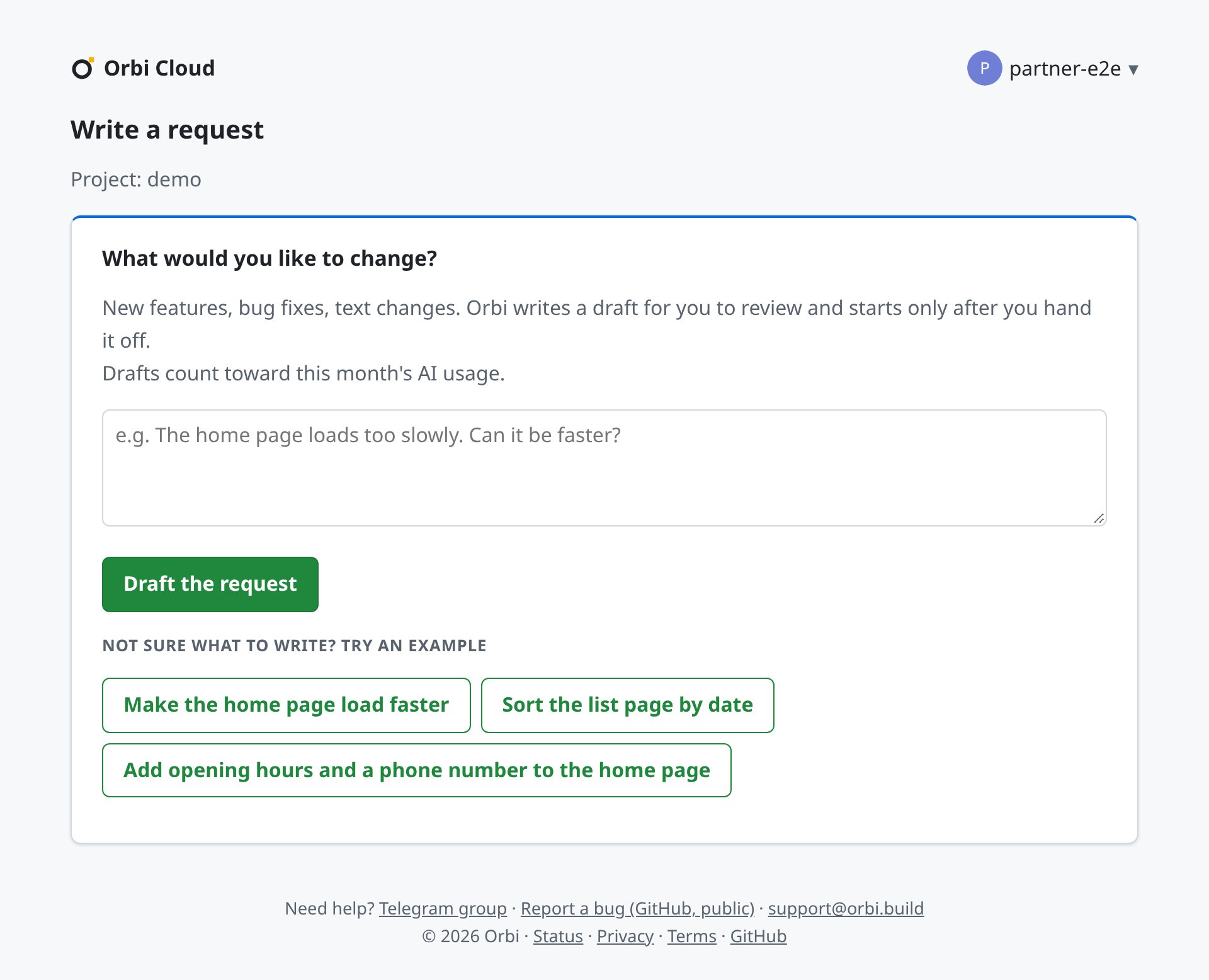
The write-a-request page: describe the change in a sentence, or pick an example
- On the status page, click Write a request. The button appears once a GitHub repository is connected. If you have connected several, use Switch project on the page to pick one.
- Under What would you like to change?, describe it in plain words: a new feature, a bug fix, a text change. One sentence is enough; a longer description is fine too. Then click Draft the request.
- Orbi reads your code and writes the draft. This usually takes one to two minutes, and the page shows Writing the draft meanwhile. For a project you have only just connected, Orbi first waits for its work environment to be prepared, another minute or two. You can close the page; to come back, click Write a request on the status page and then Open draft. Sometimes Orbi asks you a few questions, either along with the draft or before writing it; see the next section.
- Read the draft. It states what you asked for, what your users should see when it is done, what is left out, and how Orbi read anything your words left open.
- Click Hand off to Orbi. This creates an Issue in your GitHub repository, and Orbi works from it. The page then shows Handed off to Orbi and Usually starts within a minute.
When Orbi isn’t sure
If your request can be read more than one way, Orbi asks you rather than guessing. The questions and their options are listed under Orbi chose these for you, and Orbi has already picked the option it recommends for each. You will see one of two layouts: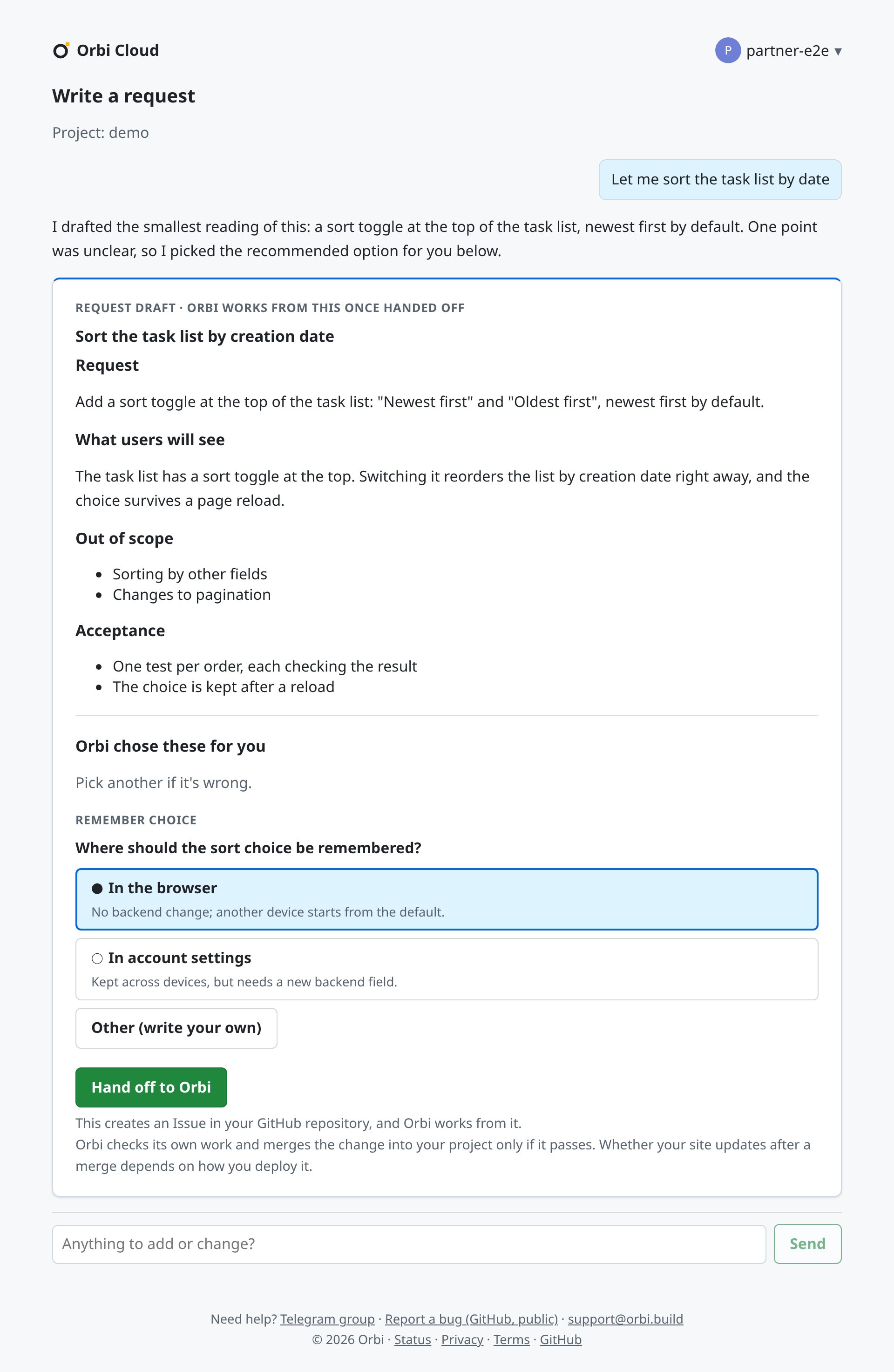
A draft with Orbi's question under it, the recommended answer already picked
- A draft with questions under it. The draft already uses the recommended answers, so if you agree you can hand it off without changing anything. If an answer isn’t what you meant, pick another option, or choose Other (write your own) and type your own. Then click Rewrite the draft; it takes about a minute, and you can hand it off once the new draft is ready. Changed your mind? Click undo your changes.
- Questions with no draft yet. Pick your answers the same way, then click Write the draft.
What gets created
When you hand off, Orbi creates a normal GitHub Issue in your connected repository. Its first line says it was submitted by you through Orbi; that line is currently always in Chinese (由 @your-login 通过 Orbi 提交). After it comes the draft exactly as you approved it. On the status page it appears as a task, showing the Issue title. Each project has one draft at a time. A draft you haven’t handed off is kept for 7 days after you last changed it. Writing a new request in the same project replaces it, and the page tells you so before you start. For tasks you have handed off, the Issue stays in your repository either way.Usage
- Writing drafts doesn’t use your free runs, and there is no separate limit on how many drafts you write.
- A task you hand off is counted the same way as an Issue you give Orbi any other way: on the free plan, a run only counts if the change is merged.
- Free plan: your free runs are a one-time allowance and do not reset monthly. When you have none left you can still write and hand off, but the task won’t start. After you subscribe, the task shows up on the status page among the Issues Orbi hasn’t started; click the button next to it (such as Try →) to start it. You don’t write it again.
- Paid plans: when this month’s AI usage limit is reached, writing drafts stops too until the limit resets on the 1st of the next month. You won’t be charged extra. See Limits and quotas.